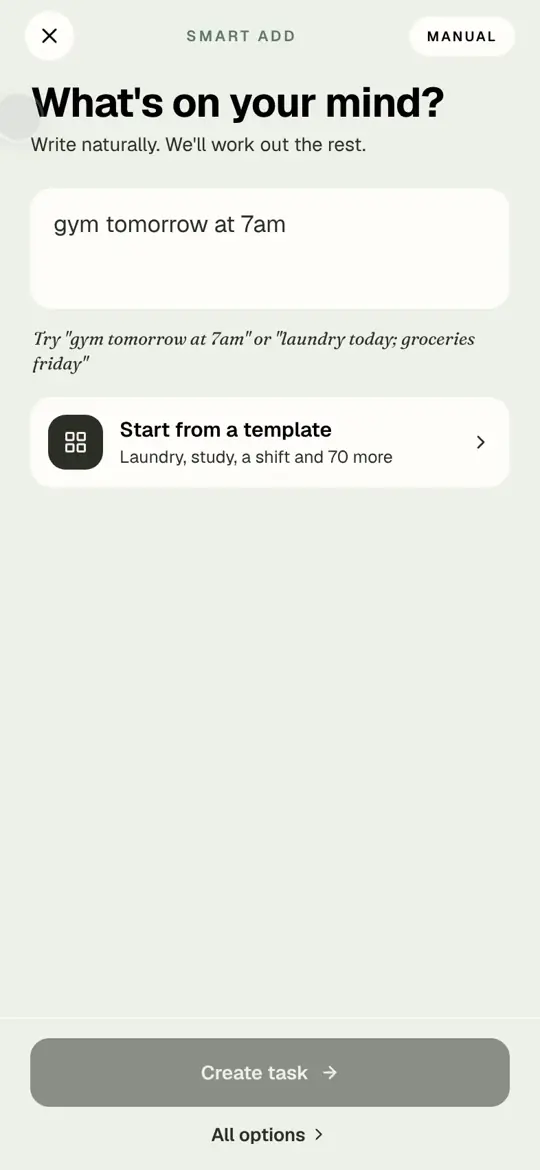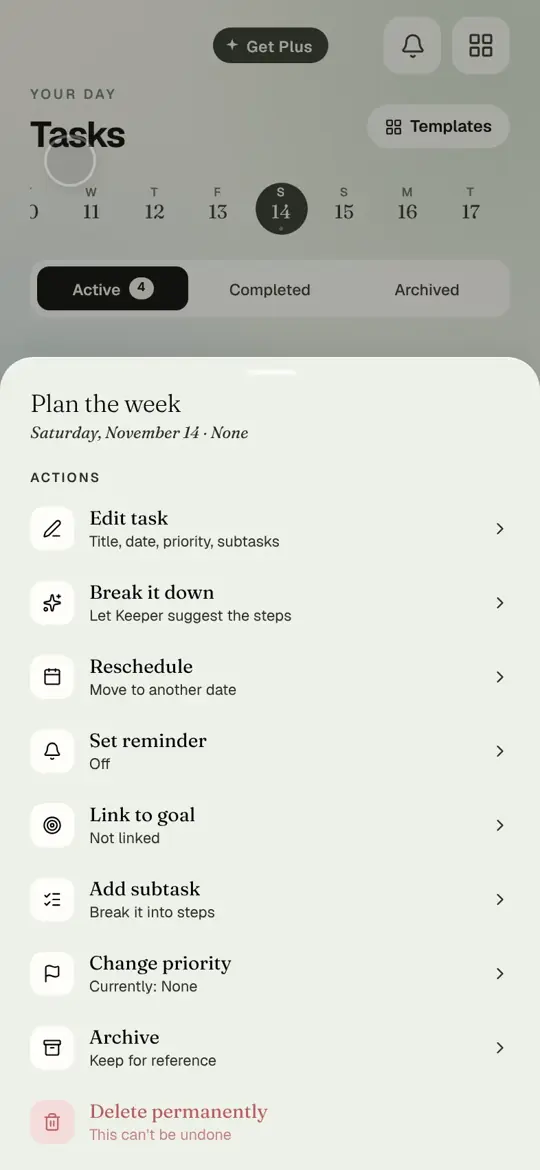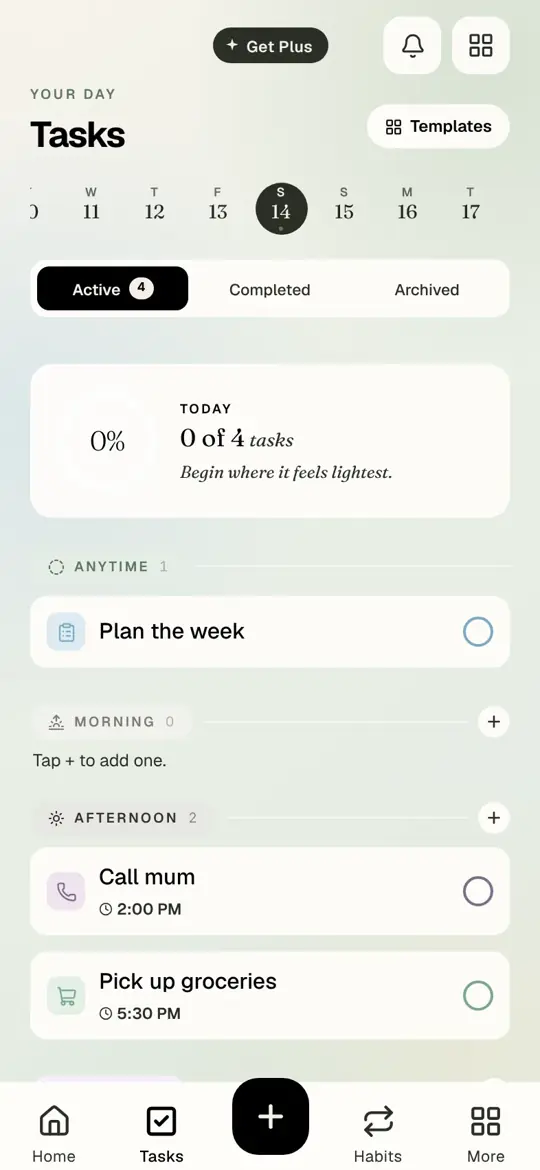
Settings is short on purpose. Three things are worth a minute on day one.
Watch it
Recorded in the app
Open More
Step by step
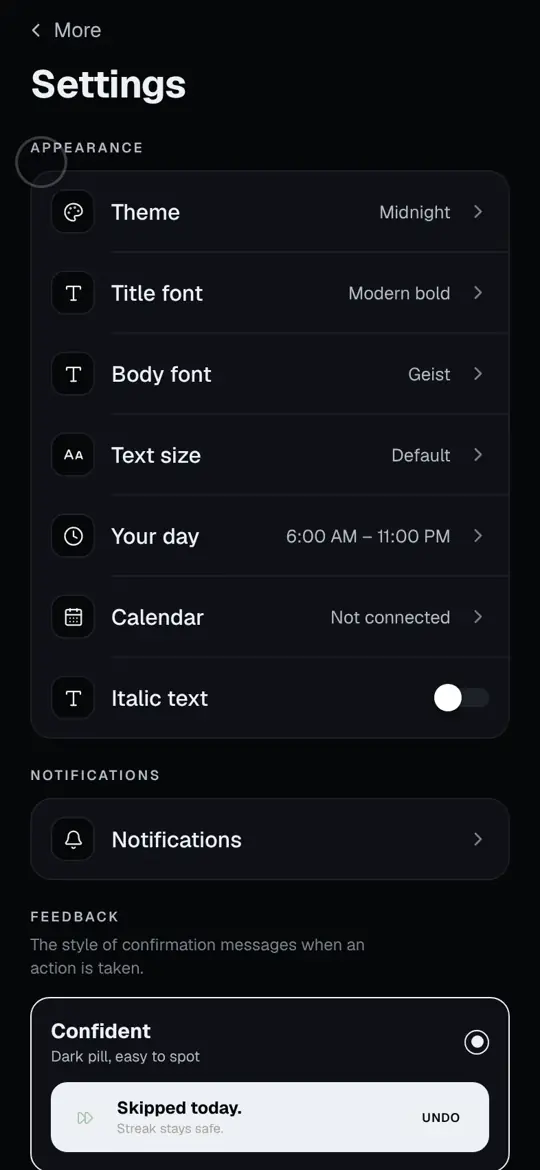
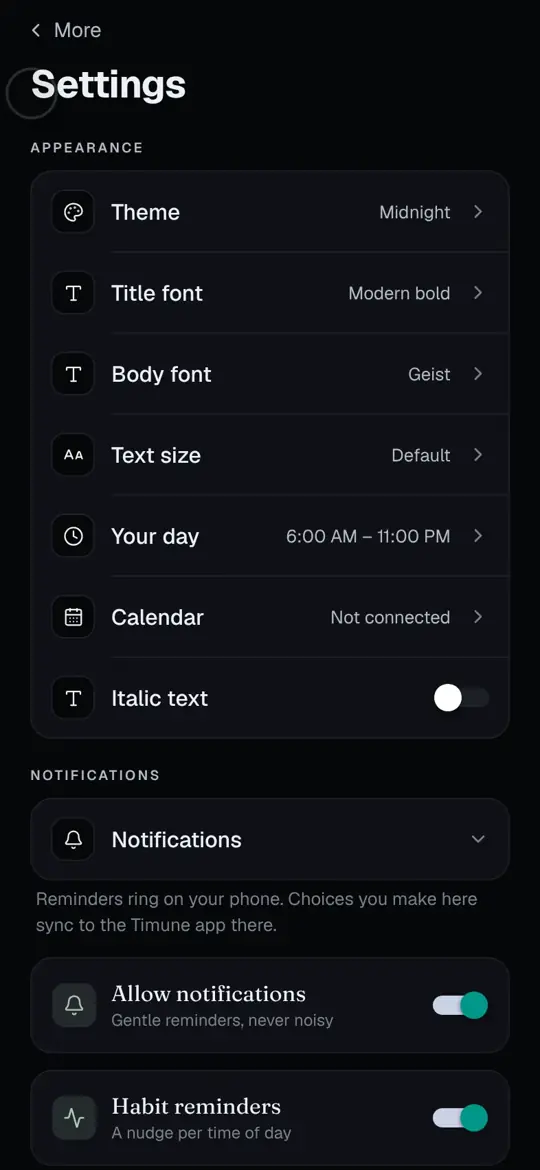
Step 1 of 7
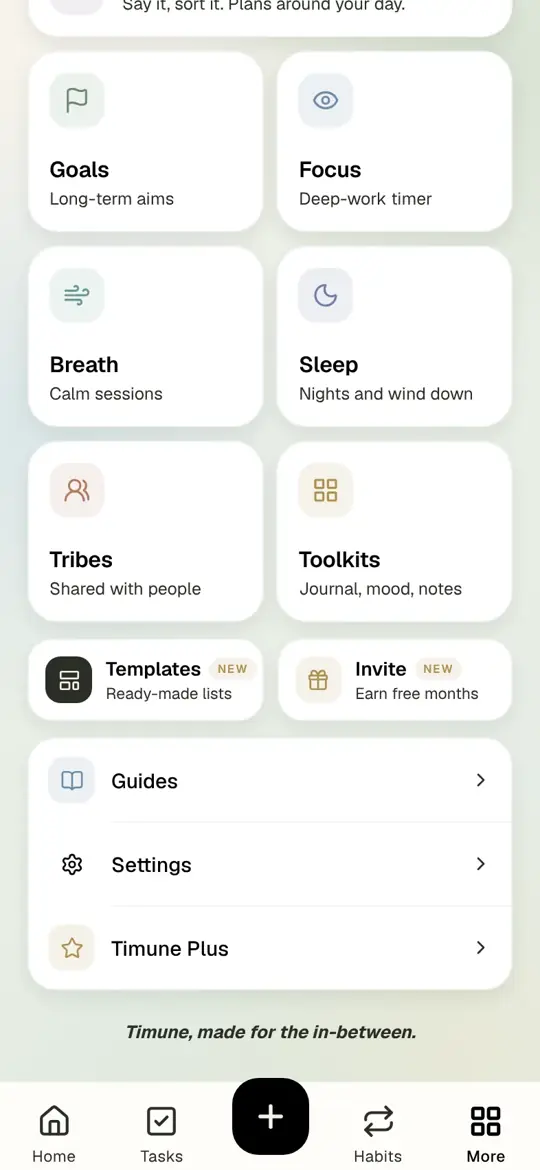
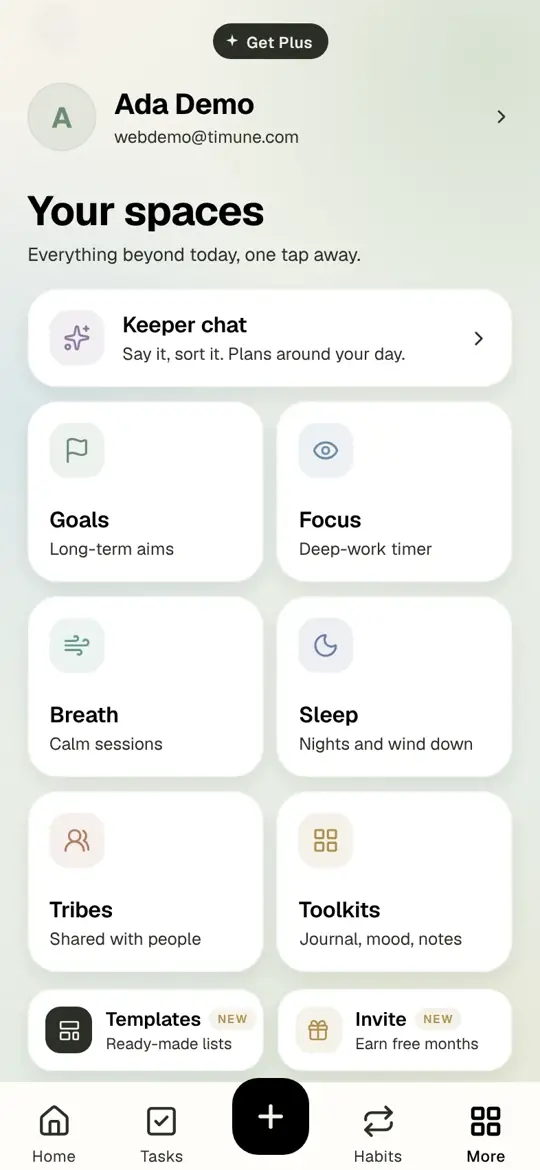
Tap More in the bottom bar. Scroll to the bottom and tap Settings.
- Tap More in the bottom bar. Scroll to the bottom and tap Settings.
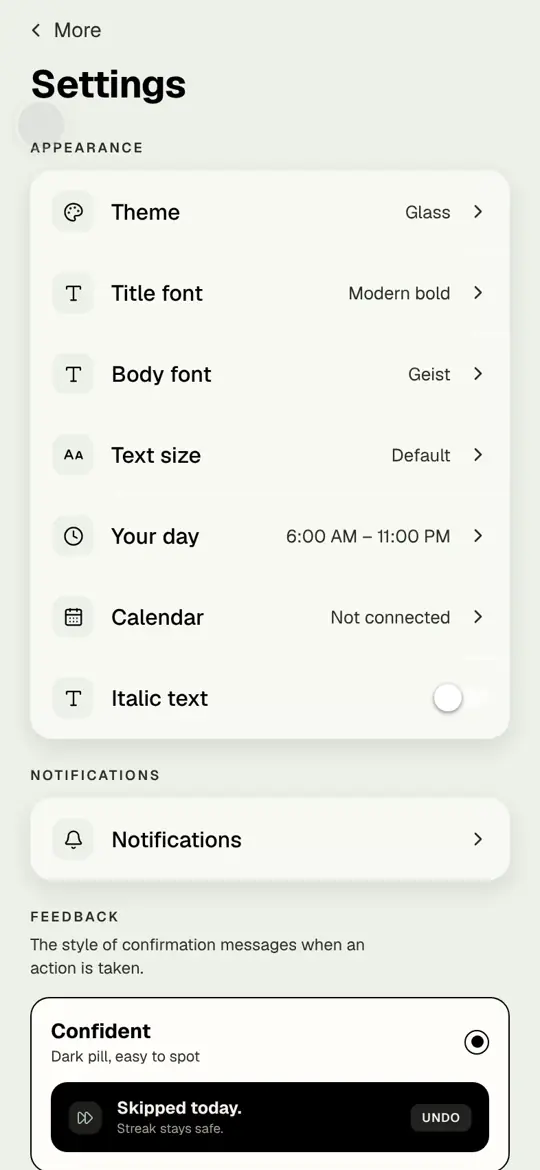
- Appearance is at the top. Tap Theme.
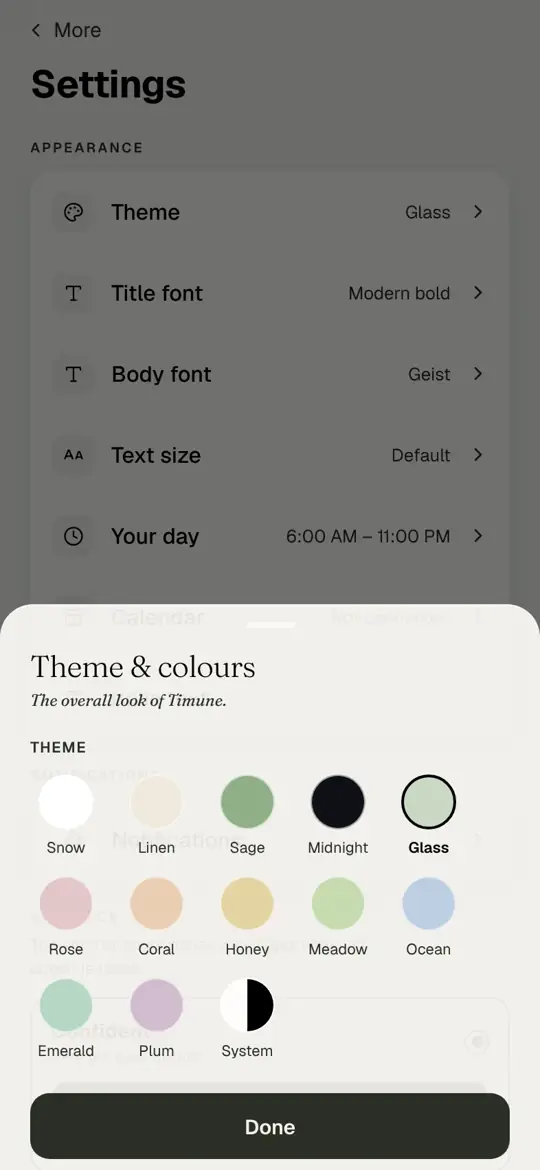
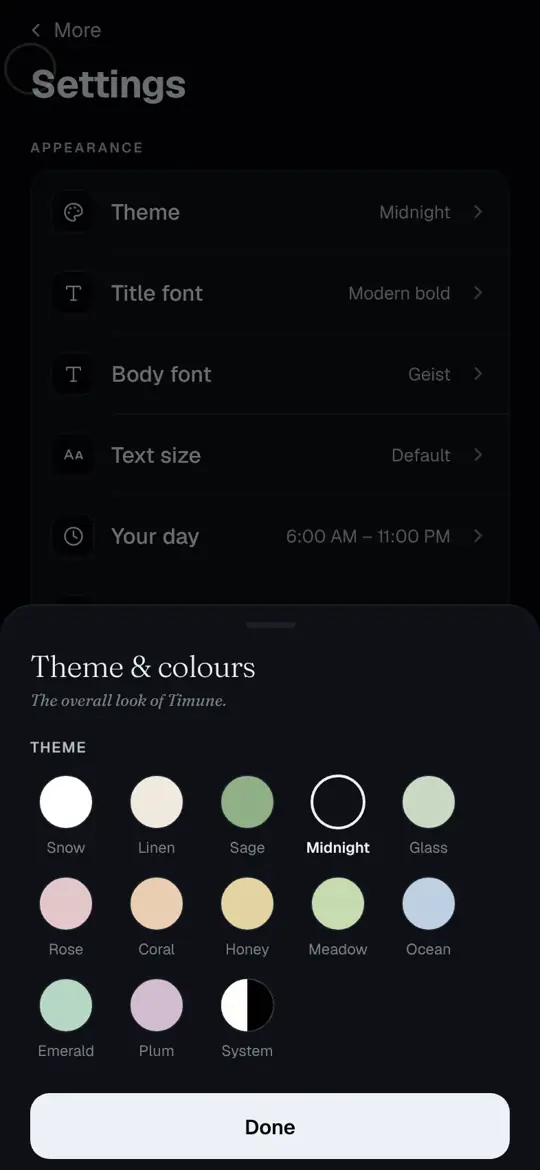
- Pick a theme. Snow and Linen are light; Midnight is dark; System follows your phone. Tap Midnight.
- Tap Done.
- The whole app changes at once. Scroll down and tap Notifications.
- Allow notifications turns them on. Habit reminders is one nudge per part of the day. Both can be off.
- Changes save as you make them. Tap More at the top left to go back.
The rest of Settings
- Title font, Body font, Text size: the typefaces and size of everything.
- Your day: when your day starts and ends. Keeper keeps tasks inside these hours.
- Calendar: connect your phone calendar so events show on Today.
- Feedback: how confirmation messages look after an action.
- Export and delete: at the bottom. Your data is yours; take it or remove it any time.
Questions people ask
Does the theme change on the web too?
Yes. Theme, fonts and text size follow your account, so phone and browser match.
Why am I not getting reminders?
Check two places: Timune's Settings, then Notifications, and your phone's own Settings, then Notifications, then Timune.
Can I turn off just the habit reminders?
Yes. Allow notifications stays on; Habit reminders goes off.
tutorialsettingsthemenotifications
Try it in Timune.
Every theme is free to try. Plus unlocks all of them for keeps, plus every font.
Get Timune free