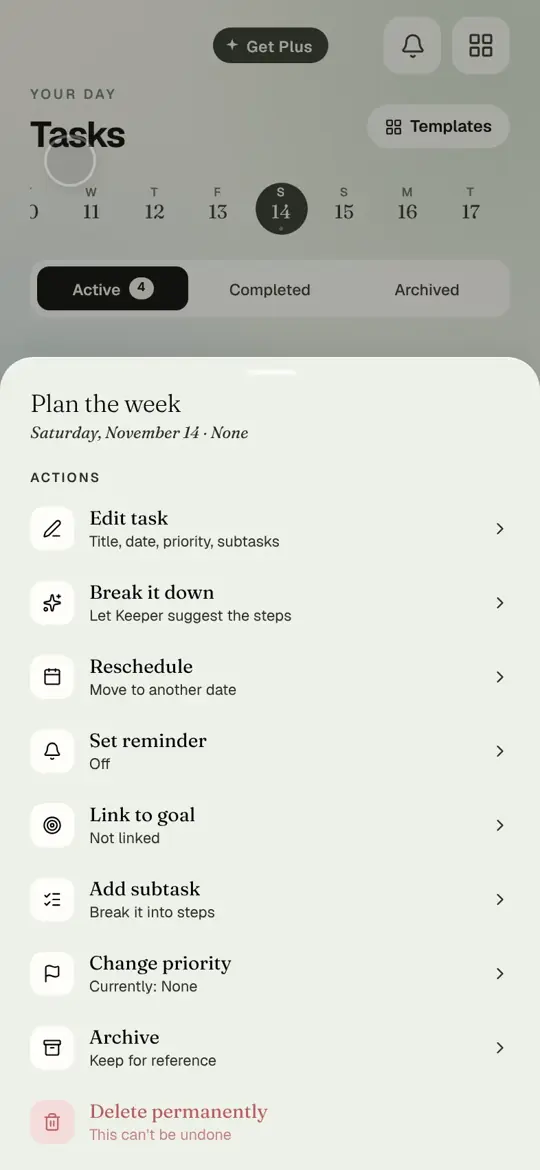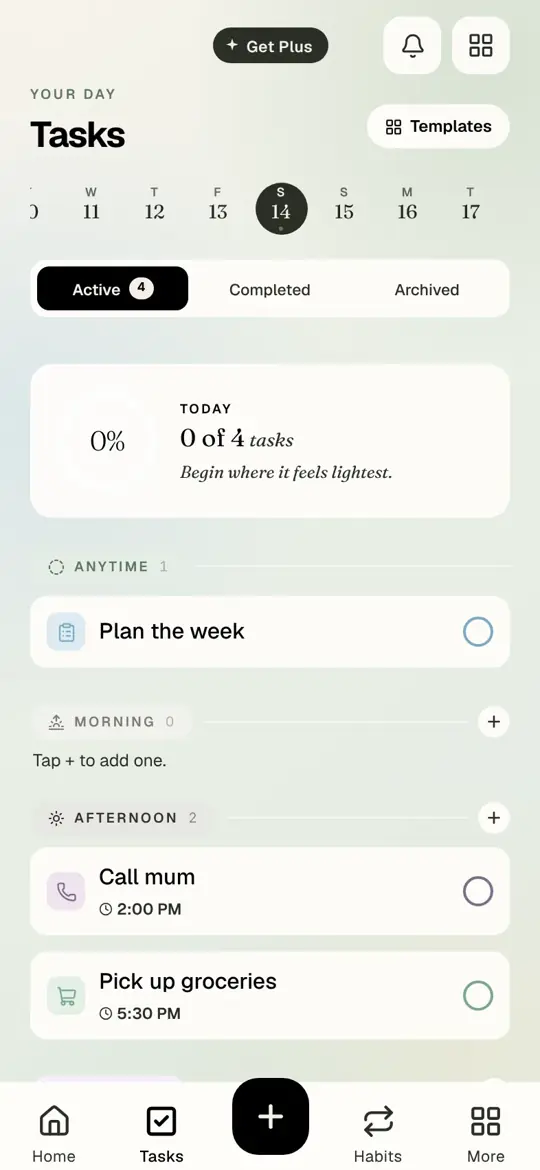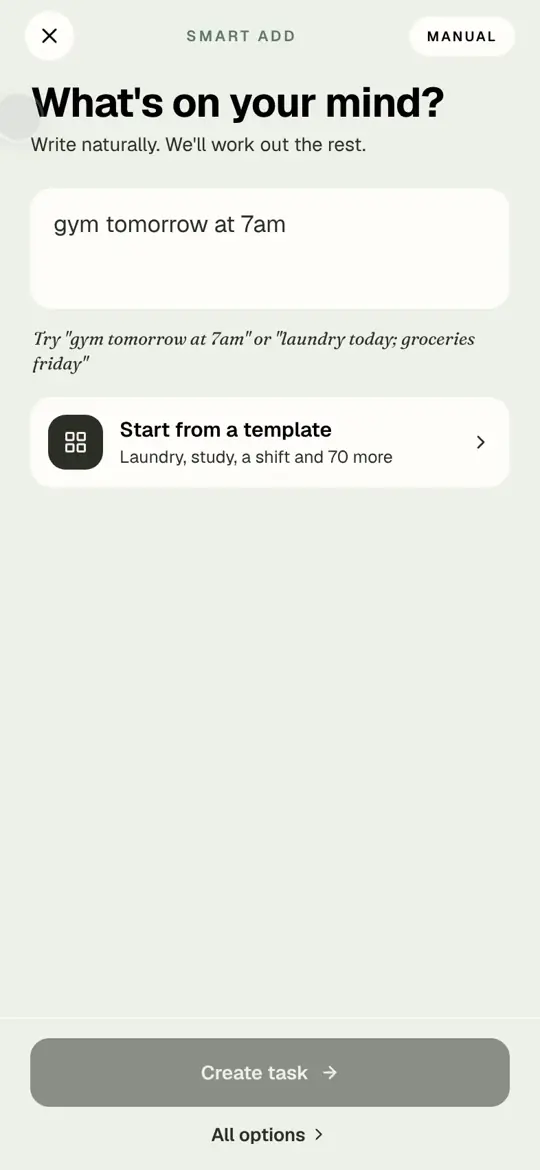
Smart add is the quick way. This is the full way, for a task with a date, a priority, a few steps and a note.
Watch it
Recorded in the app
Tap plus
Step by step
Step 1 of 10
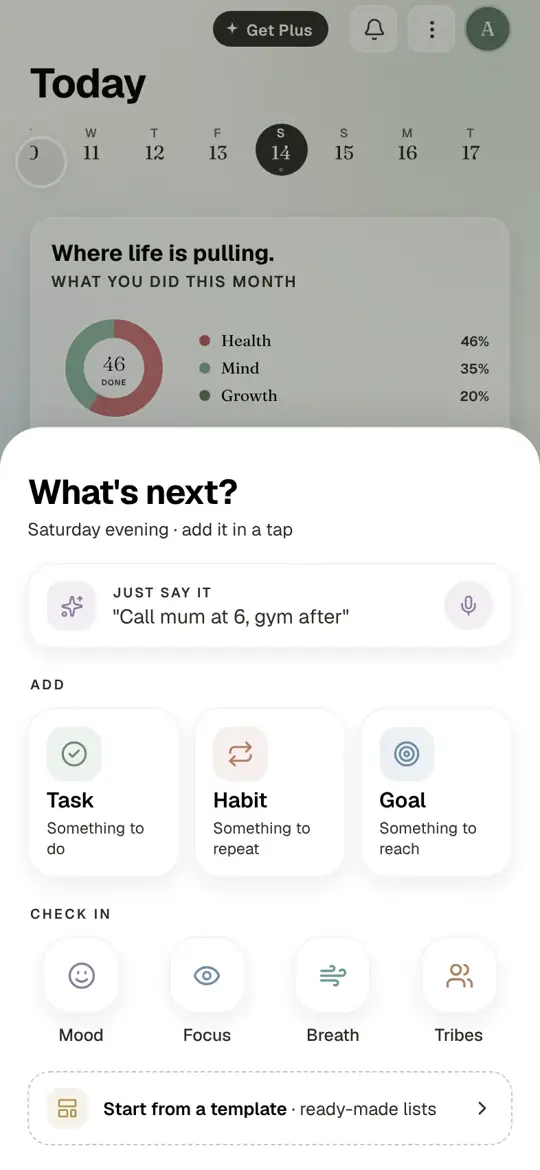
Tap plus, then Task.
- Tap plus, then Task.
- Smart add opens. At the bottom, tap All options.
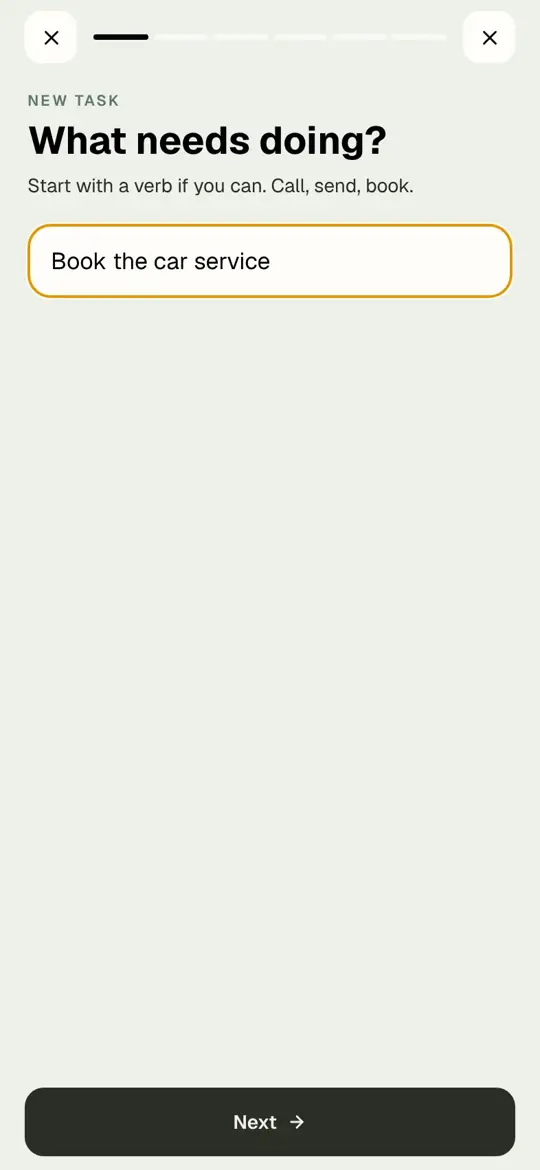
- What needs doing? Type the task. Start with a verb if you can. Tap Next.
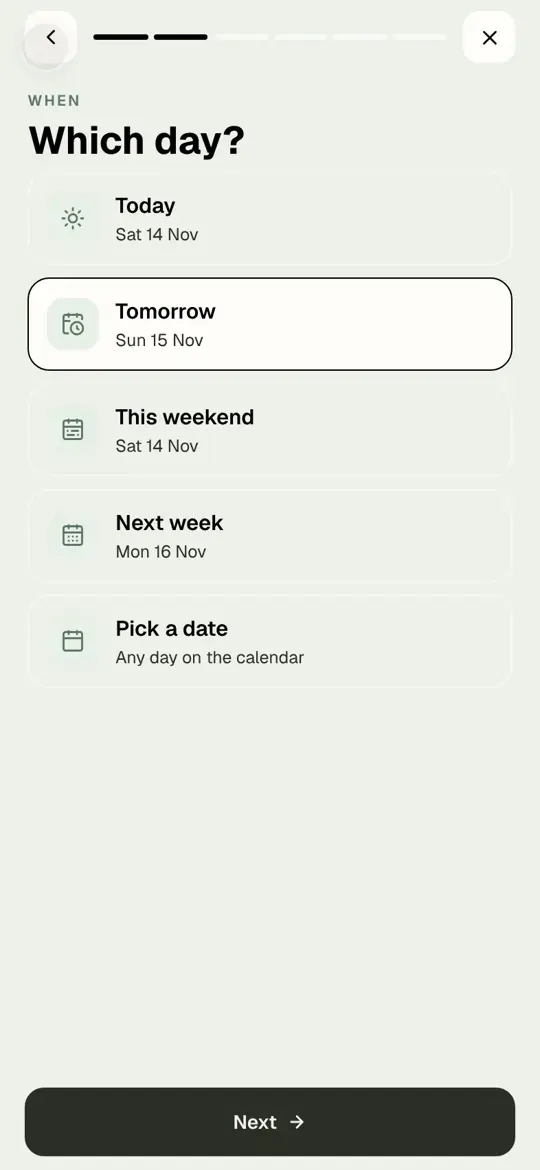
- Which day? Today, Tomorrow, This weekend, Next week, or Pick a date for the calendar.
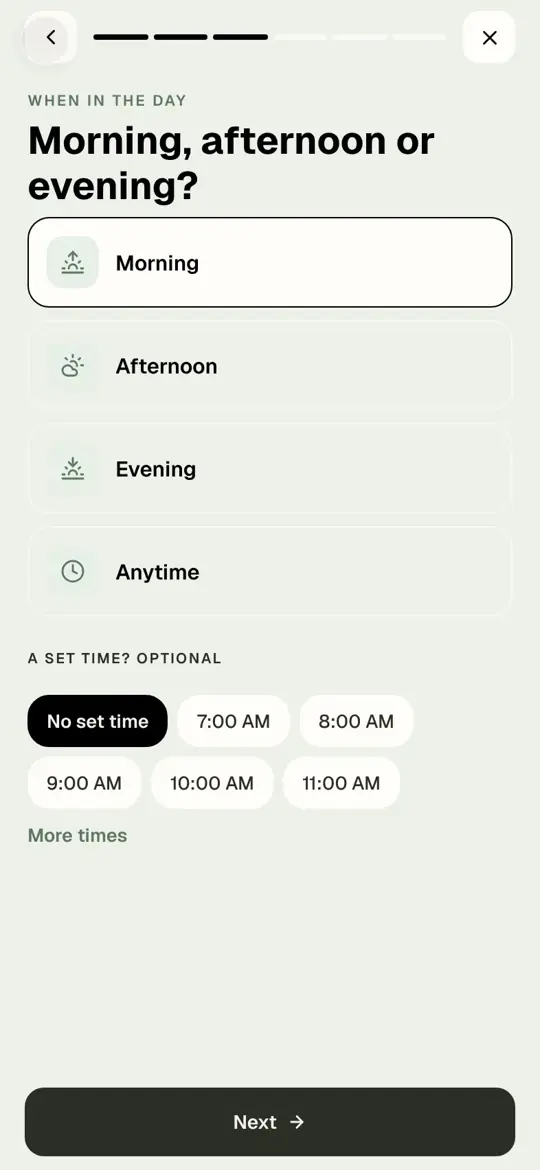
- Morning, afternoon or evening? Pick the part of the day. A time is optional and sits underneath for the few tasks that need one.
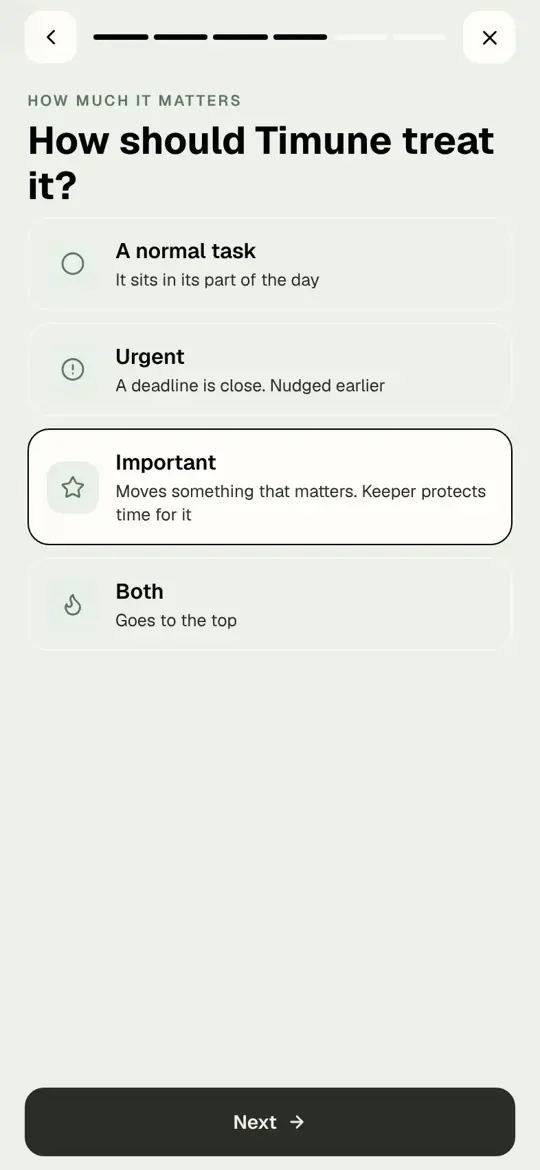
- How should Timune treat it? A normal task, Urgent (nudged earlier), Important (Keeper protects time for it), or Both.
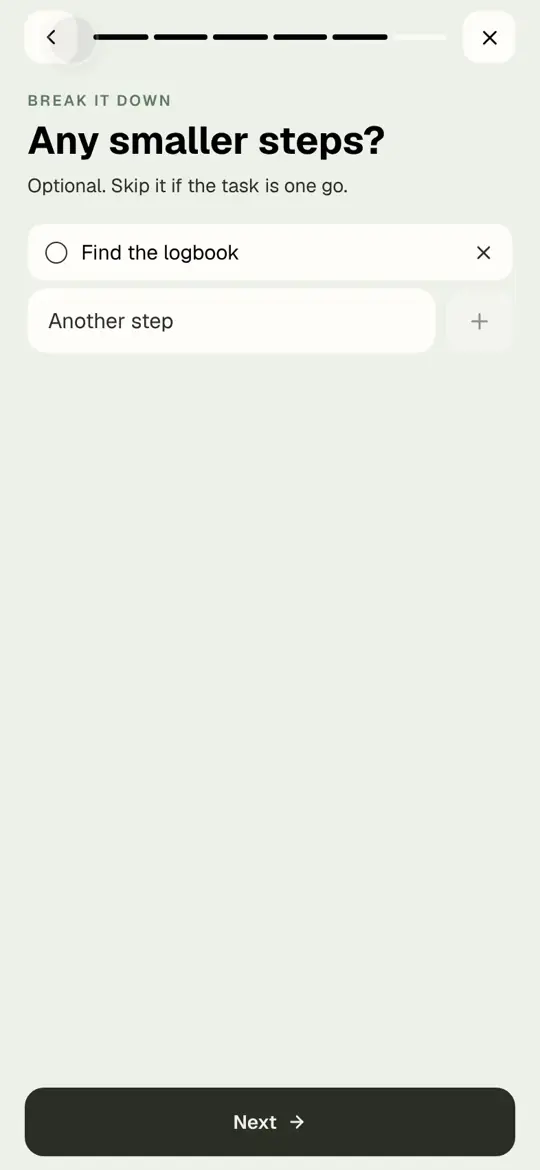
- Any smaller steps? Optional. Type a step and tap plus. Skip if the task is one go.
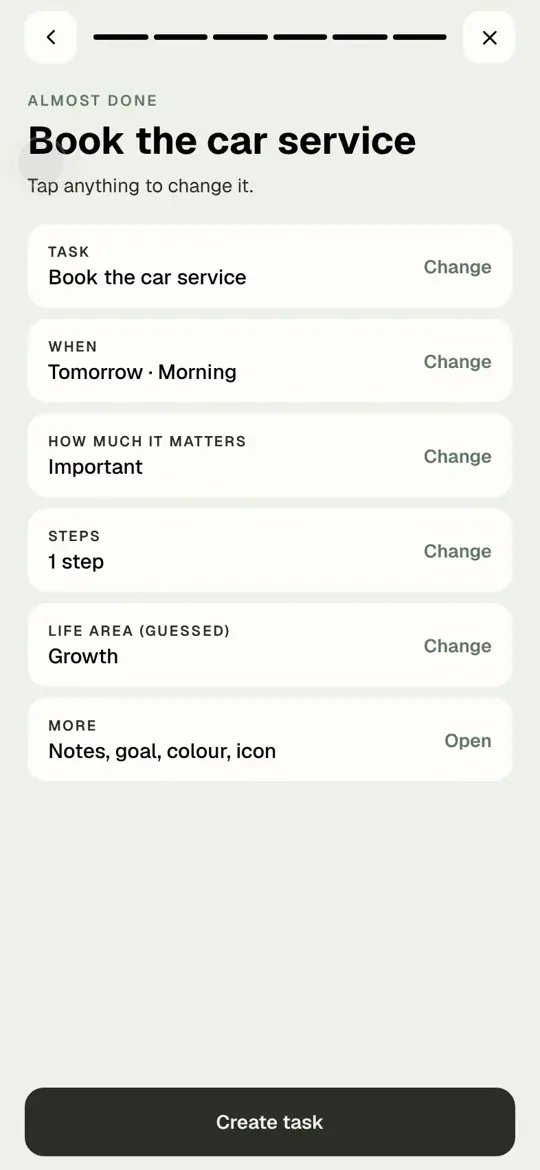
- Almost done. Everything you chose is listed; tap Change on any row. Tap Open under More for notes, colour and icon.
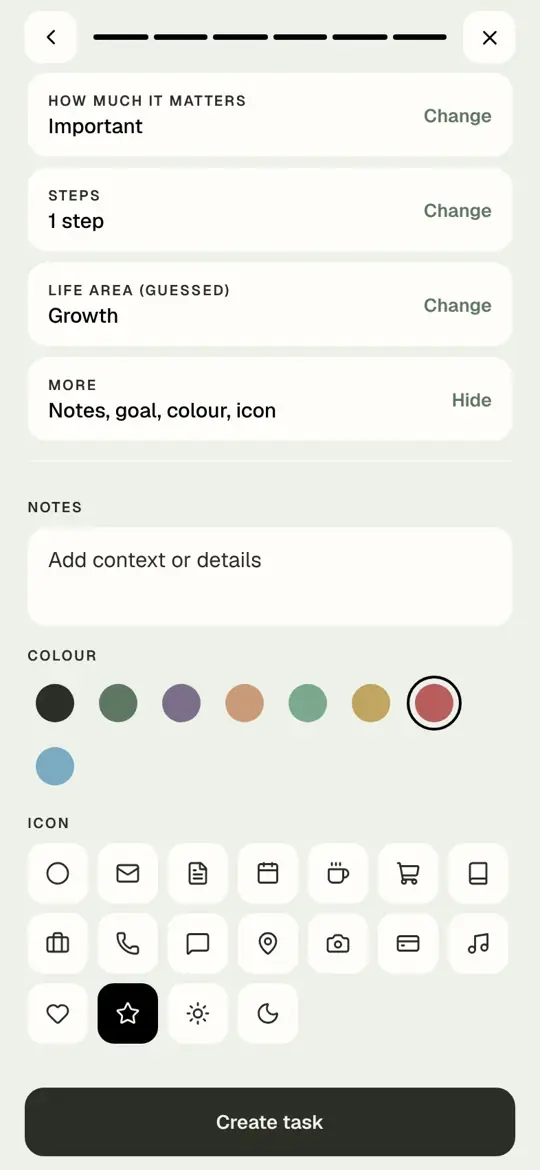
- Add a note, pick a colour, pick an icon. Then tap Create task.
- The task is on its day, in its part of the day, with its steps underneath.
What each option does
- Day and part of the day decide where the task appears. Nothing else moves if the task runs late.
- Urgent nudges the task earlier in the day and in reminders. Important asks Keeper to protect time for it when planning a week.
- Steps show under the task as small tick boxes. Tick the last one and the task completes.
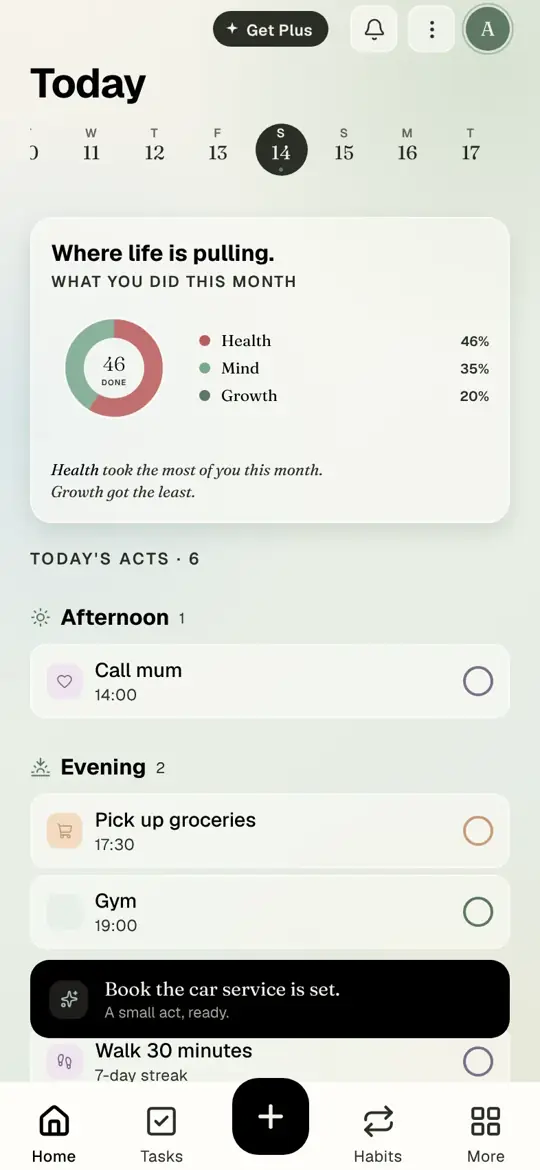
- Life area is Timune's guess at which part of your life this belongs to (Health, Mind, Growth and so on). It feeds the monthly summary on Today. Change it if the guess is wrong.
- Colour and icon are for finding a task at a glance.
Questions people ask
Can I edit these later?
Yes. Tap the task, then Edit task. Every option is there.
What is the difference between steps and a goal?
Steps belong to one task and finish with it. A goal is bigger, with its own screen and progress.
Do I need to fill in everything?
No. Only the name is required. Next skips anything you leave blank.
tutorialtasksprioritysubtasks
Try it in Timune.
Most tasks need only a name. The full form is there for the ones that need more.
Get Timune free