Your account is where your plan lives, so it is there on your phone, on your laptop, and after a new phone. This takes a minute.
Watch it
Welcome
Step by step
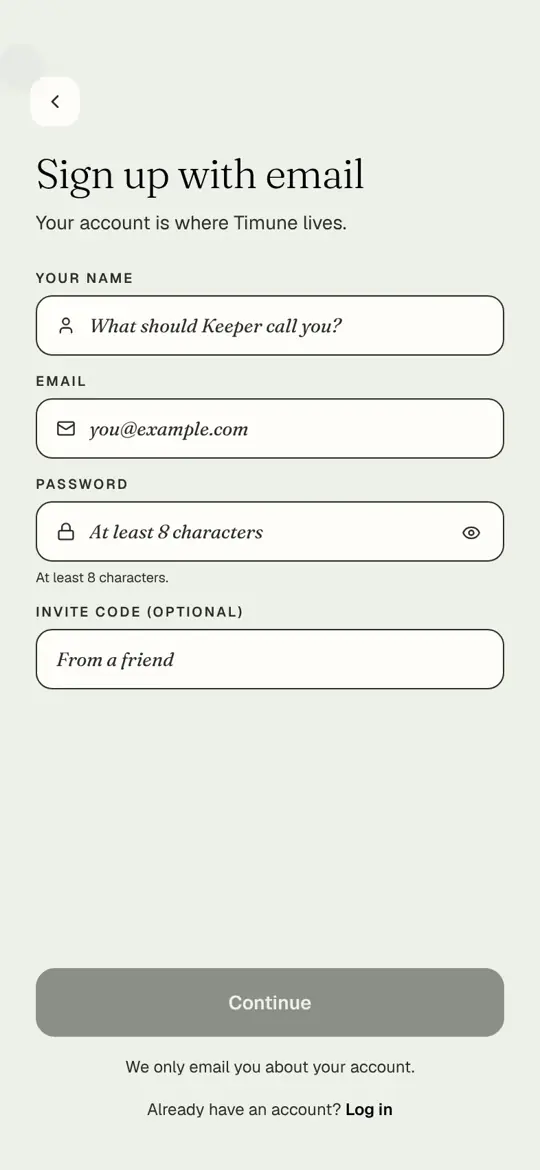
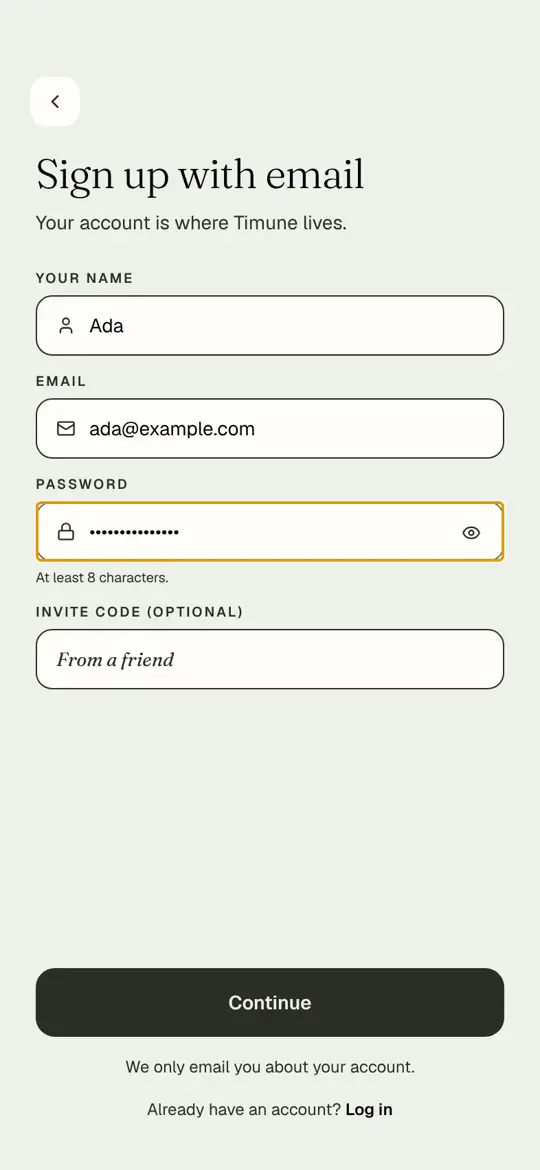
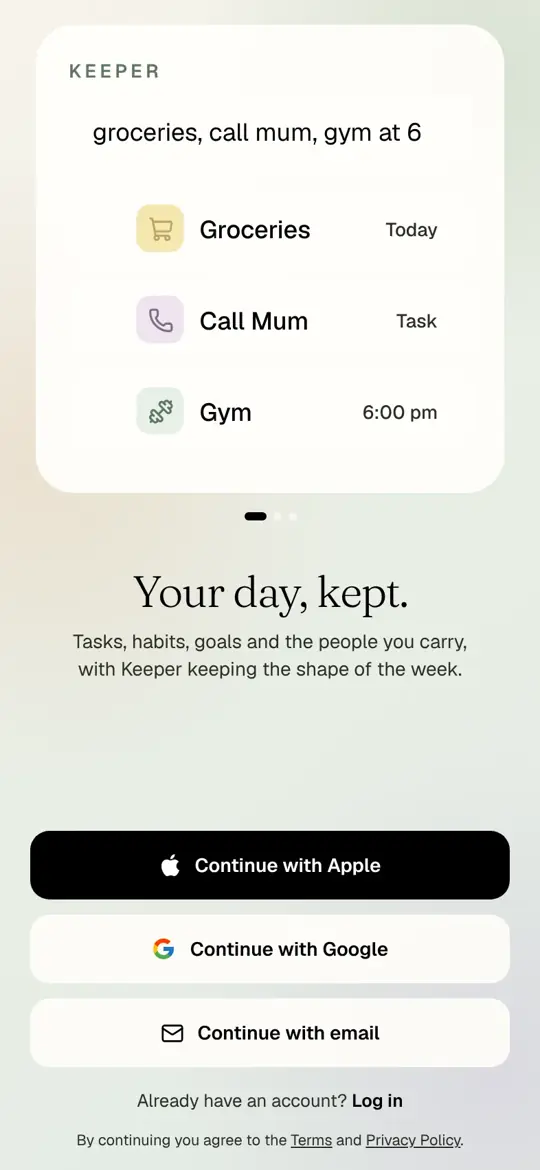
Open Timune. Pick Continue with Apple, Continue with Google, or Continue with email. Apple and Google take two taps and need no password.
- Open Timune. Pick Continue with Apple, Continue with Google, or Continue with email. Apple and Google take two taps and need no password.
- With email: your name, your email address, and a password of at least eight characters. The invite code is only if a friend gave you one.
- Tap Continue.
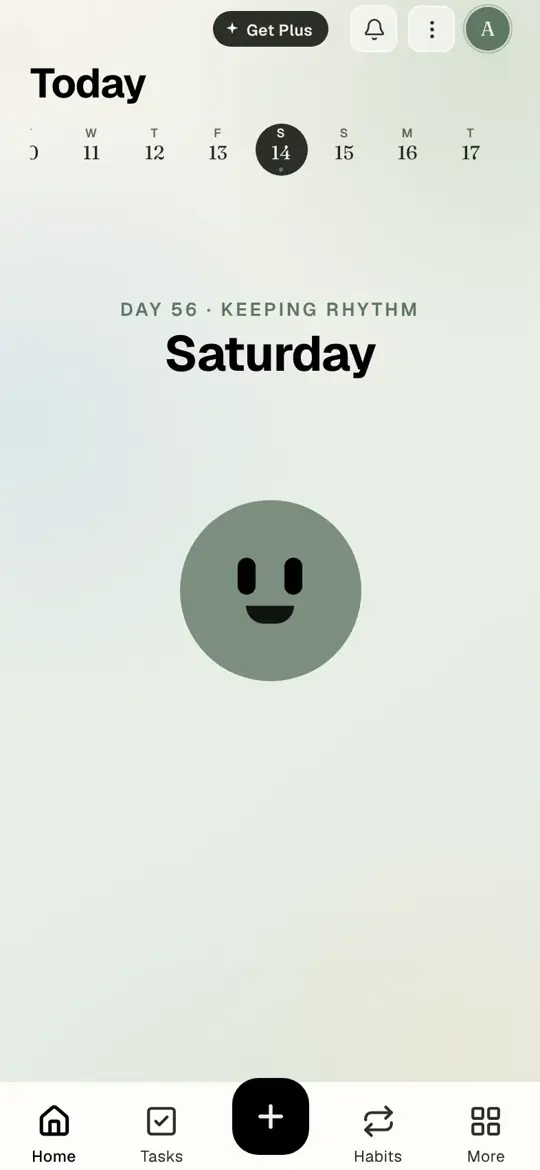
- You are in. Timune shows you around, then lands on Today.
Signing in on another device
Open app.timune.com in any browser, or Timune on another iPhone, and sign in the same way you signed up. Your tasks, habits and goals are already there.
Questions people ask
Which sign-in should I pick?
Any. Apple and Google skip the password. Email works everywhere, including Android browsers. You can use the same email address with all three and it is one account.
I forgot my password.
On the Log in screen, tap Forgot your password? and follow the email.
Can I change my name or email later?
Yes. Settings, then your profile at the top, then Display name or Email.
Try it in Timune.
Free on iPhone and in your browser. Sign in with the same account on both.
Get Timune free